Guide
How to download your eBird data
To download your eBird data, sign in at ebird.org on a computer, open My eBird, click Download My Data, then Request My Observations. eBird emails you a link to a .zip file. Inside is MyEBirdData.csv: every sighting you’ve submitted, with its date and place. Here are the steps, with pictures.
Updated
What you get
A copy of your own observations: every bird on every checklist you’ve submitted, with its date, place and count. It’s your personal record, separate from the large research datasets eBird shares with scientists. eBird’s own help page points to the same place: My eBird, then Download My Data.
Step by step
Sign in at ebird.org on a computer
Use the eBird website, signed in with the account you enter your checklists with.
Click “My eBird” in the top menu
It opens your own eBird pages: your checklists, your lists and your account.
Click “Download My Data” in the left menu
It’s the last link in the menu, under Preferences and Cornell Lab Account.
On a phone? eBird’s help says to tap “Manage” first. (We checked these steps on a computer.)
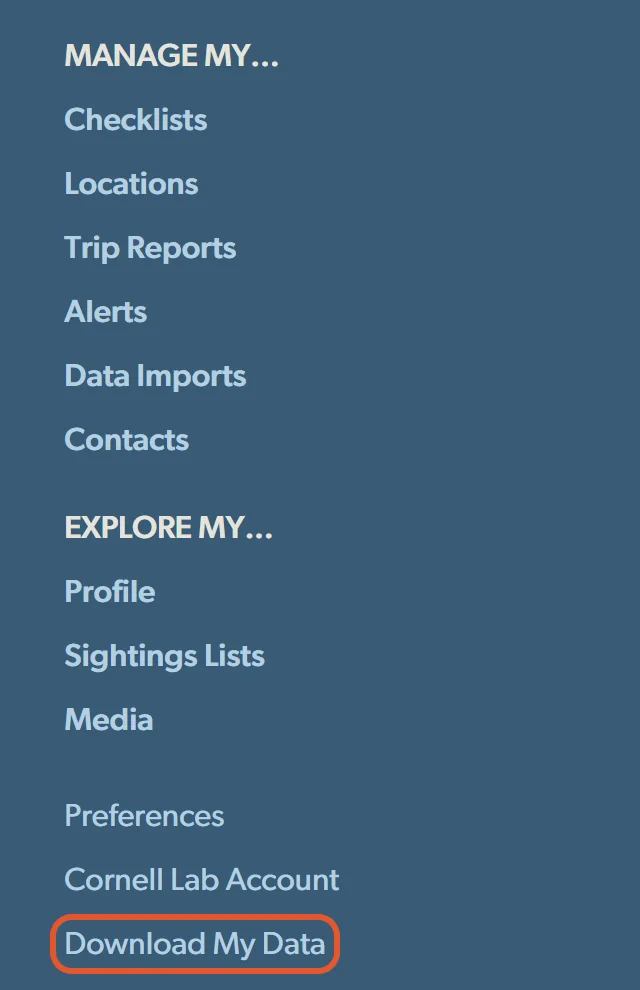
Download My Data is the last link in the My eBird menu. See the picture larger Click “Request My Observations”
That asks eBird for a file of every observation you’ve submitted.
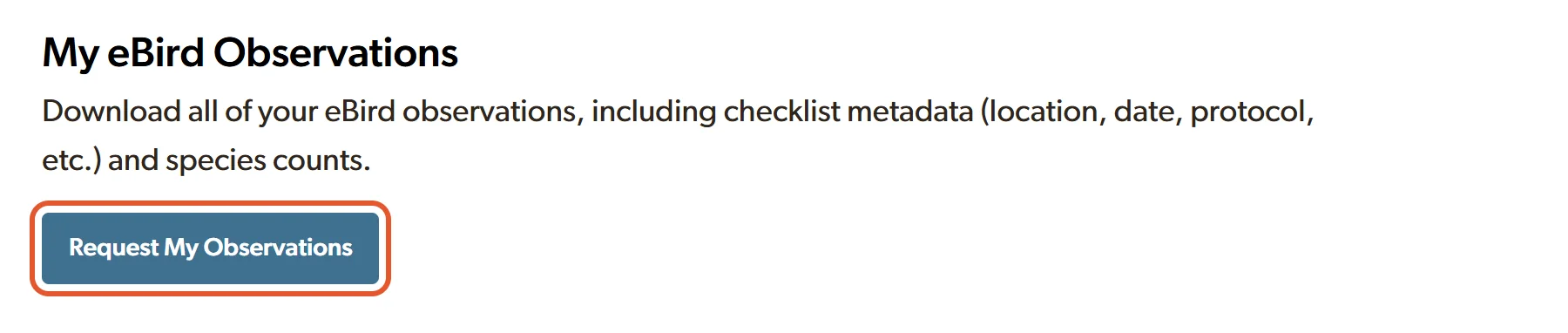
Under My eBird Observations, press Request My Observations. See the picture larger Wait for eBird's email
eBird emails you a download link, usually quickly. If it hasn’t arrived within 24 hours, look in your spam folder, and make sure email from do-not-reply@ebird.org isn’t blocked.
Download the .zip file
The link downloads a .zip file. To make a Birdfolio, drop it as it is on Make your Birdfolio, or open it and drop the MyEBirdData.csv file inside. There’s no need to open the CSV first.
What’s in the file
Inside the .zip is MyEBirdData.csv, a spreadsheet file with one row for each species on each of your checklists. Its columns include the common and scientific name, the count, the state or province, the location, the date and time, and your checklist notes.
It also holds each location’s map coordinates. A Birdfolio prints place names, never coordinates.
Only want your life list, or part of your data?
eBird’s Sightings Lists page, in the My eBird menu, lists every species you’ve reported: your life list. You can switch between the first and the most recent time you reported each one. The globe, calendar and bird icons narrow it to one place, a range of dates or one species. Then the cloud icon or the Download button downloads a spreadsheet of just those observations. That’s how eBird’s help page describes it.
To make a Birdfolio, use the full download from Download My Data (MyEBirdData.csv): it’s the file our book is built and tested with.
If something goes wrong
- No email?
- Give it time, then check your spam folder. If nothing has come after 24 hours, make sure email from do-not-reply@ebird.orgisn’t blocked and request the file again.
- The file looks odd in a spreadsheet?
- You don’t need to open it at all. If you do, close it without saving: spreadsheet programs can change dates and special characters when they save.
- Rows that aren’t a species?
- The file also holds records like “gull sp.” (a gull not named to species) and hybrids. They aren’t full species, so they don’t add to a life list. In a Birdfolio they go on an “Also recorded” page, so nothing is lost.
Keep a copy
Your file is a backup of years of birding. Save a copy somewhere safe, and download a fresh one now and then, after a big trip for example. More in our guide to backing up your birding records.
Birds from before you used eBird, in an old notebook? Type up a paper list. New to the words? See what a life list is.